
One of the questions we receive most often at Prodecad, both from students at our academy and from colleagues in the sector, is: «What computer do I need for Exocad?». And the answer, although simple, has important nuances: depends on the complexity of your work. It's not the same to design a single crown as it is to plan a full rehabilitation on implants with surgical guides.
Choosing the computer for Exocad right is not an expense, it is a direct investment in your productivity, efficiency, and, ultimately, in the quality of the final result you offer your patients. A slow computer or one that constantly crashes translates into lost hours, frustration, and a bottleneck that holds back the potential of your laboratory or dental clinic. That's why we have created this definitive guide, based on the official requirements and our daily experience, to help you choose the best computers for Exocad and take your digital workflow to the next level.
What computer do you really need for Exocad?
Exocad is an extraordinarily powerful software, but that power comes at a price in terms of hardware. We are not talking about a simple word processor; Exocad handles 3D meshes with millions of polygons, performs complex Boolean operations in real time, and renders photorealistic visualizations. All of this demands considerable computing power and graphics performance.
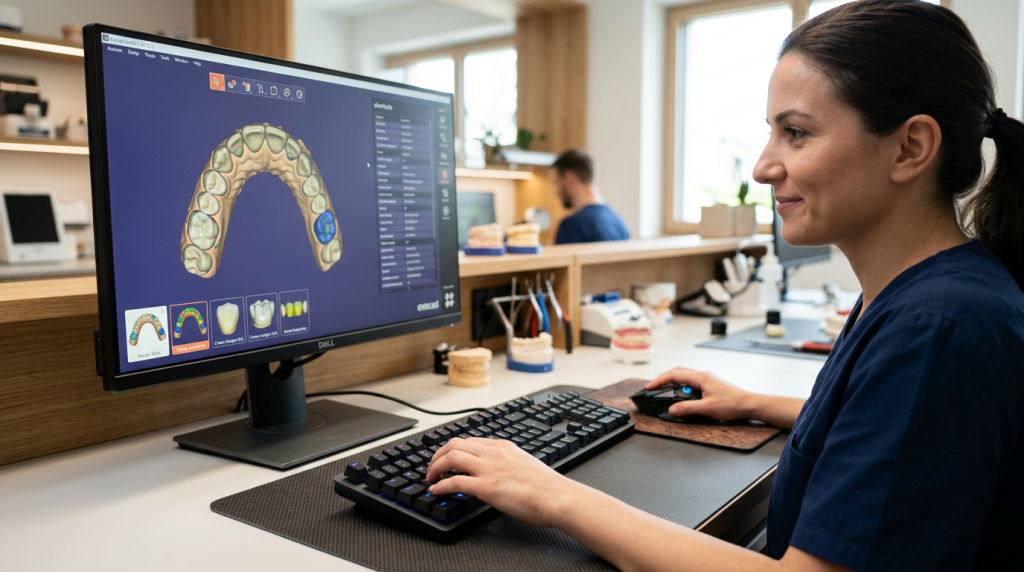
Why the choice of hardware is critical for dental CAD design
The choice of your workstation directly impacts every phase of your digital workflow:
- Loading speed: Opening heavy intraoral scans or projects with multiple STL files can be instantaneous or a wait of several minutes.
- Fluidity in design: Moving, rotating, and sculpting 3D models should be a smooth and stutter-free experience (lag). Insufficient hardware causes stuttering and a slow response that hinders precision.
- Calculation times: Operations such as connector generation, calculating anatomy proposals, or nesting for the milling machine depend directly on the processor's power. A good PC reduces these waiting times from minutes to seconds.
- Stability: There is nothing more frustrating than a program «crash» in the middle of a complex design. Robust and well-configured hardware minimizes the risk of errors and loss of work.
In summary, a computer for Exocad well-dimensioned one allows you to focus on what really matters: the aesthetics and function of the restoration, not on fighting with the technology.
Differences depending on the type of work: from single crowns to full rehabilitations
The hardware needs are not the same for all Exocad users. Your specialization and workload will determine the ideal configuration for you.
- Simple cases (Crowns, inlays, small bridges): If your work focuses on single-unit restorations or small bridges, you can start with a recommended or even a mid-range configuration. The files are not excessively large and the calculations are relatively fast.
- Intermediate cases (Smile design, multiple restorations): When working with the module Smile Creator, combining several scans or designing multiple crowns in the same case, the amount of data increases. Here, more RAM (16GB or more) and a capable graphics card become crucial for a smooth experience.
- Complex cases (Implant bars, full dentures, surgical guides): This is the realm of high-performance workstations. Handling large libraries, aligning multiple scans (models, wax-ups, CT), and calculations for complex structures like bars or hybrid prostheses require a high-end processor (Intel Core i7/i9 or AMD Ryzen 7/9), a minimum of 32GB of RAM, and a powerful graphics card.
Official Exocad Requirements: Minimum vs. Recommended
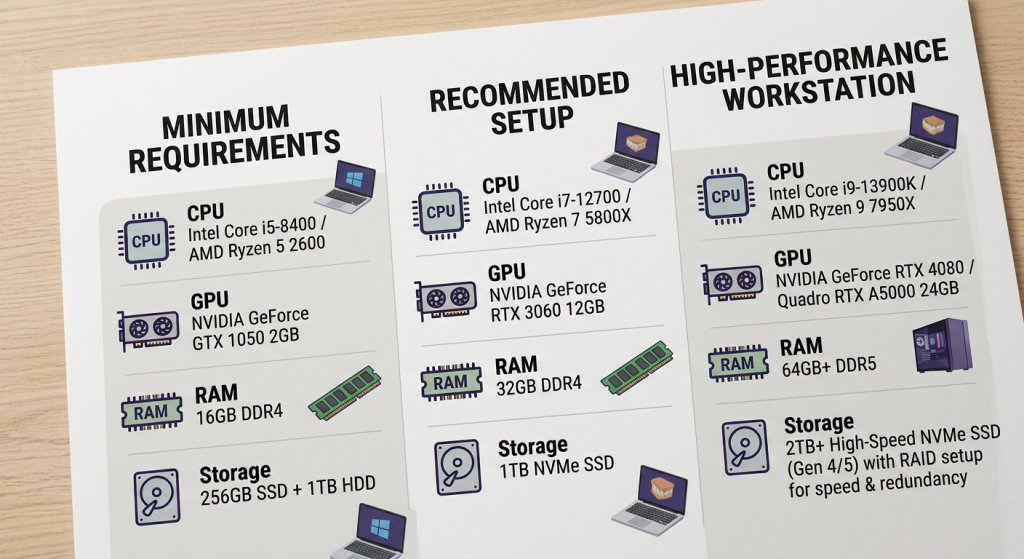
The Exocad company itself provides clear guidelines on the necessary hardware. It is essential to distinguish between the "minimum" requirements (for the program to run) and the "recommended" ones (to work professionally and efficiently). Below, we break down the official specifications. (Source: exocad.com)
Minimum configuration to get started
This configuration will allow you to open Exocad and perform basic tasks, but you will likely experience slowness with large files or complex tasks. It is a viable option for students or for very occasional use.
- CPU (Processor): Four cores at 2.8 GHz. Must be Intel or AMD x64 architecture.
- RAM: 8 GB.
- GPU (Graphics Card): Dedicated card with 4 GB of video memory (VRAM). A minimum level of CUDA 3.0 or OpenCL 1.2 is required. Important: integrated Intel graphics chips are not compatible with modules like PartialCAD.
- Screen resolution: 1080p (1920×1080) with a 100% DPI scale.
Recommended configuration for a smooth workflow
This is the configuration that we at Prodecad consider the ideal starting point for any professional who will be using Exocad regularly. It offers an excellent balance between cost and performance, allowing you to work on most cases agilely and without bottlenecks.
- CPU (Processor): Intel Core i5-10400 or AMD Ryzen 5 3600.
- RAM: 16 GB.
- GPU (Graphics Card): NVIDIA RTX 2060 or AMD Radeon RX 5600 XT (both with 6GB of VRAM or more).
- Screen resolution: 1080p (1920×1080) or higher.
'Workstation' Configuration for complex cases and large volumes
If you are a "power user," work with full rehabilitations, manage a large volume of daily cases, or simultaneously use several Exocad modules, this is the configuration for you. It is designed to offer maximum performance without compromise.
- CPU (Processor): Intel Core i7-14700K, Intel Core i9-14900K or AMD Ryzen 9 9950X.
- RAM: 32 GB DDR5 (or even 64GB to be future-proof, as suggested by users on specialized forums).
- GPU (Graphics Card): NVIDIA RTX 4080 (16 GB) or AMD Radeon RX 7900 XT (20 GB).
- Screen resolution: WQHD (2560×1440), although UHD (3840×2160 or 4K) is recommended.
Analysis of Key Components for Exocad
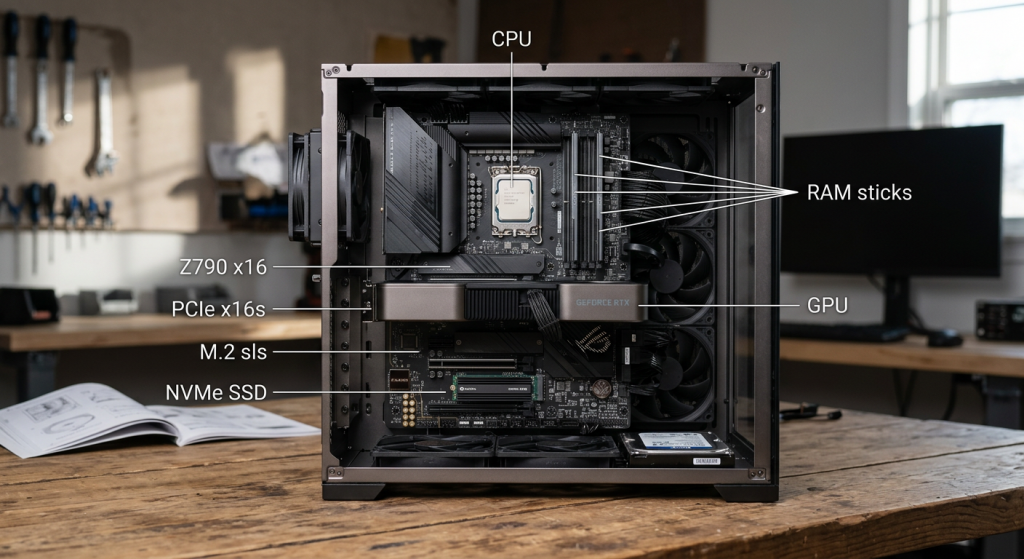
Understanding what each component does will help you make an informed decision and not overspend on what you don't need, nor underspend on what is critical. A computer for Exocad is a balanced system where each part plays a fundamental role.
CPU (Processor): Intel or AMD? How many cores do you need?
The processor is the brain of your computer. It handles all the complex calculations, such as generating design proposals or adapting a crown to the preparation margin. For Exocad, there are two key factors:
Clock speed (GHz): A higher clock speed translates to faster calculations for tasks that depend on a single core.
Number of cores: More cores help with multitasking and in processes that the software can parallelize (run on multiple cores at once).
Both Intel (Core i5, i7, i9) and AMD (Ryzen 5, 7, 9) offer excellent options. Historically, Intel has had a slight advantage in single-core performance, but the latest AMD generations are extremely competitive. The official Exocad recommendation includes models from both brands, such as the Intel Core i9-14900K or the AMD Ryzen 9 9950X for maximum performance. The most important thing is that it is a CPU with an x64 architecture, as Exocad is not compatible with ARM architectures like Apple's M1, M2, or M3 chips.
GPU (Graphics Card): The importance of an NVIDIA RTX
The graphics card (GPU) is responsible for everything you see on the screen. It renders 3D models, manages textures, shadows, and allows for smooth navigation through the scene. For Exocad, a dedicated GPU is absolutely indispensable.
Although AMD cards are mentioned, the general recommendation in the sector, and the one we support, is to opt for an NVIDIA RTX series card. Their performance and driver stability for CAD applications are usually superior. Models like the NVIDIA RTX 2060 are an excellent starting point, while an NVIDIA RTX 4070 or RTX 4080 will provide you with more than enough graphics power for the most demanding cases and the most realistic visualizations.
RAM: Is 16GB enough or do you need 32GB?
RAM is your computer's active workspace. The more RAM you have, the more files and programs you can have open simultaneously without the system slowing down. For Exocad, which works with very large scan files:
8 GB: This is the absolute minimum. Enough to get started, but you will run into limitations quickly.
16 GB: This is the recommended sweet spot for professional use. It will allow you to work on most cases without performance issues.
32 GB or more: This is the recommendation for high-performance workstations. Indispensable if you work with full rehabilitations, multiple scans, or if you want to have Exocad, the scanner software, a design program, and the browser open at the same time.
Storage: NVMe SSD as an indispensable standard
The type of storage drive has a drastic impact on the overall speed of the system. Nowadays, using a solid-state drive (SSD) is non-negotiable. Forget about the old mechanical hard drives (HDD) for the operating system and programs.
The difference is abysmal: the system starts up in seconds, programs open instantly, and most importantly, Exocad projects and files load much faster. Among SSDs, the fastest technology is NVMe M.2. We recommend a configuration with at least one 1TB NVMe SSD for the operating system and programs, and if possible, a second SSD (it can be NVMe or SATA) to store your database of cases and libraries, as suggested in dental community forums (Source: Dental Lab Network).
Ranking: The Best Computers for Exocad in 2026
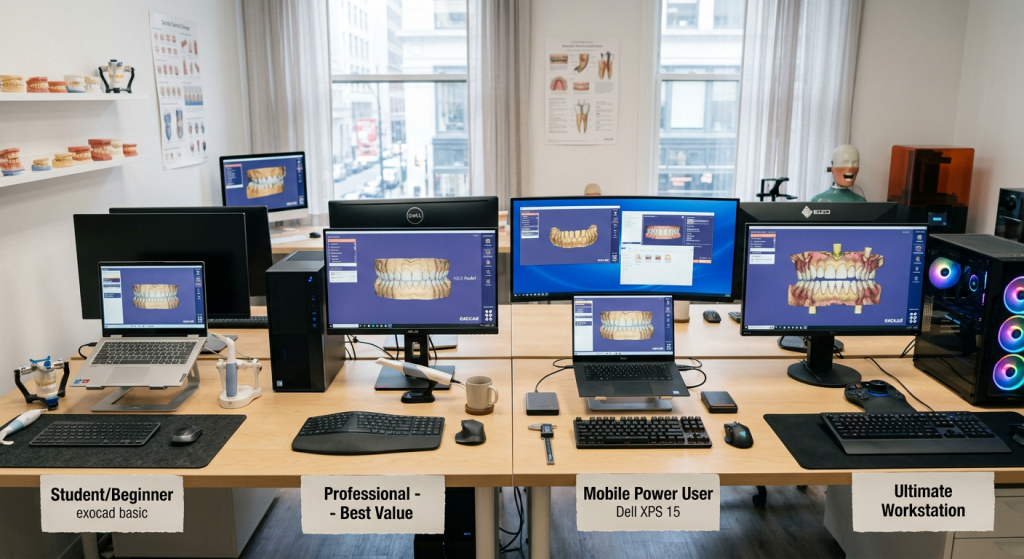
To make your choice easier, we have created four PC profiles for Exocad based on the most common needs and budgets, using the manufacturer's recommended specifications and community experience.
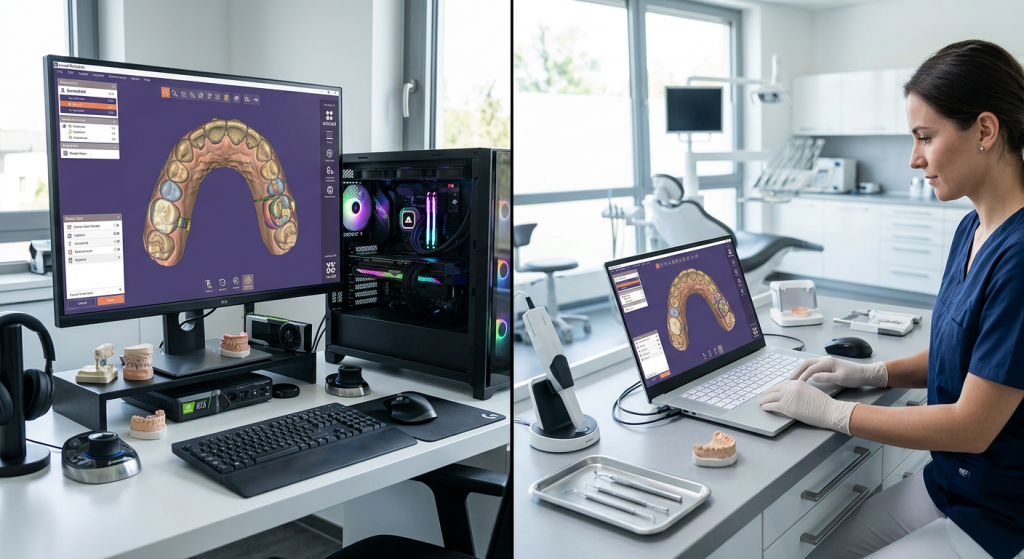
Power and Upgradability (Desktop)
A desktop computer will almost always offer more performance for the same price. The components do not have the thermal and space limitations of a laptop, allowing for more powerful CPUs and GPUs and better cooling. Furthermore, its great advantage is modularity: you can upgrade individual components (more RAM, a new graphics card, more storage) over time to extend its lifespan. As some technicians comment on forums, many prefer to build their own PCs to optimize cost and performance.
Flexibility and Portability (Laptop)
The obvious advantage of a laptop is being able to take your work with you. It is ideal for those who travel, conduct training, or need to show designs directly to the clinician or patient. However, this portability comes at a cost: they are usually more expensive for equivalent performance to a desktop, and their upgrade capabilities are very limited (usually only RAM and hard drive).
Cost and Cooling Considerations
Cooling is a critical factor, especially in a laptop for Exocad. Prolonged design or calculation tasks can generate a lot of heat, and if the cooling system is not adequate, the system's performance will be reduced (thermal throttling) to protect the components. Desktops, with their larger fans and greater airflow, manage heat much more efficiently. In practice, many experienced users prefer the reliability and sustained performance of a desktop workstation, relegating the laptop to a secondary role (Source: Dental Lab Network).
The Economic Option for Students and Beginners
A system designed for those starting in the world of dental CAD or for academy students. It meets the minimum requirements but with reliable components for a proper learning experience.
- CPU: Intel Core i3 (12th gen or higher) / AMD Ryzen 3 (5000 series or higher)
- RAM: 16 GB DDR4
- GPU: NVIDIA GeForce GTX 1650 (4 GB)
- Storage: 512 GB SSD NVMe
- Ideal for: Learning, designing small crowns and bridges.
Best Value Desktop
The "all-rounder" configuration. Based on the official recommended specifications, it is the perfect choice for most laboratories and clinics. More than enough power for day-to-day use without an exorbitant outlay.
CPU: Intel Core i5-13400F / AMD Ryzen 5 7600X
RAM: 16 GB DDR5
GPU: NVIDIA GeForce RTX 3060 (12 GB) or RTX 4060 (8 GB)
Storage: 1 TB SSD NVMe
Ideal for: Professional workflow, smile design, multiple restorations.
Best Laptop for Mobility and Power
For the professional who needs flexibility, client presentations, or to work from different locations. A laptop for Exocad must be powerful, but watch out for the cooling. As some users warn, i9 processors in laptops can overheat during intensive tasks.
CPU: Intel Core i7 (13th or 14th gen H-series) / AMD Ryzen 7 (HS/HX series)
RAM: 32 GB DDR5
GPU: NVIDIA GeForce RTX 4060 Laptop (8 GB) or RTX 4070 Laptop (8 GB)
Storage: 1 TB SSD NVMe
Display: 15-16 inch QHD (2560×1600) with good color calibration.
Ideal for: Mobile designers, trainers, in-clinic presentations.
The Ultimate Workstation (Maximum Performance)
The no-compromise machine. Designed for production centers, high-volume labs, and specialists who work with the most complex cases. Each component is chosen to offer maximum speed and reliability.
CPU: Intel Core i9-14900K / AMD Ryzen 9 7950X
RAM: 32 GB or 64 GB DDR5
GPU: NVIDIA GeForce RTX 4080 (16 GB) or RTX 4090 (24 GB)
Storage: 2 TB SSD NVMe Gen4 (for OS and programs) + 2 TB additional SSD (for cases and libraries)
Ideal for: Full rehabilitations, implant bars, surgical guides, intensive multitasking.
Desktop or Laptop for Exocad? Advantages and Disadvantages
The eternal question. The answer depends on your workflow and your mobility needs. Both are viable options, but with key differences.
Clearing up Doubts: Exocad on Mac
This is a very common question, and Exocad's official answer is clear and definitive: Exocad is not compatible with macOS. The software is developed exclusively for the Windows operating system.
The compatibility issue with Apple Silicon (M1, M2, M3)
The incompatibility goes beyond the operating system. Exocad's hardware requirements specify that an x64 architecture CPU (Intel/AMD) is needed. Apple's new computers use their own processors (M1, M2, M3), which are based on the ARM architecture. These are completely different architectures, so the software cannot run natively.
Alternatives: Parallels and Boot Camp (and why they are not ideal)
Virtualization solutions like Parallels exist that allow running Windows on a Mac, even on models with M chips. However, this is done through an emulation layer that translates x64 instructions to ARM, which leads to a loss of performance and can cause instability. For older Macs with Intel processors, there was the Boot Camp option to install Windows natively, but this option is no longer available on the new Macs with Apple Silicon.
In conclusion: although it is technically possible to try to run Exocad on a Mac through virtualizers, is not a recommended or officially supported solution for a professional work environment. The risks of low performance, graphical errors, and instability are too high. To work with Exocad, the only reliable and guaranteed platform is a Windows PC.
Frequently Asked Questions (FAQ)
The eternal question. The answer depends on your workflow and your mobility needs. Both are viable options, but with key differences.
Clearing up Doubts: Exocad on Mac
We answer some of the most common questions when choosing a computer for Exocad.
Can I use a 'gamer' computer for Exocad?
Yes, and in fact, it's an excellent option. Computers designed for gaming share many of the components that Exocad needs: fast processors with high clock speeds, powerful graphics cards (especially NVIDIA RTX), large amounts of RAM, and ultra-fast SSD storage. A mid-to-high-end «gamer» PC, like an Alienware, often meets or exceeds the recommended configuration for an Exocad workstation, and sometimes at a more competitive price. The main difference is usually in the aesthetics and that professional workstations sometimes use specific GPUs (like the NVIDIA Quadro series), although for Exocad, the GeForce RTX work perfectly.
Which monitor is the most suitable?
The monitor is your window to the digital world, and you will spend hours in front of it. The minimum resolution is 1080p (Full HD), but for professional and comfortable work, we strongly recommend making the leap to a 1440p (QHD or 2K) monitor. The extra workspace allows you to see more details without straining your eyes. For high-end workstations, a 4K (UHD) monitor is ideal. In addition to resolution, look for a monitor with good color reproduction (99%+ sRGB) and a size of at least 27 inches for comfortable viewing.
How often should I upgrade my computer?
A well-configured computer for Exocad should have a productive lifespan of 3 to 5 years. After this time, it is likely that new software versions and the increasing complexity of cases will make the equipment start to feel slow. If you have a desktop computer, you can extend its lifespan with strategic upgrades: adding more RAM or changing the graphics card after 2-3 years can give it a significant performance boost without needing to replace the entire system.
Choosing the best computer for Exocad is a fundamental decision for any digital dentistry professional. We hope this guide has provided you with the necessary information to invest wisely in the most important tool for your laboratory or clinic. Remember that powerful hardware is only half of the equation; the other half is the knowledge to get the most out of it.