Blog content
You are probably at a point where you need to improve your digital designs with natural and aesthetic tooth shapes. If this is your case, the step you are missing is install a teeth library in Exocad.
In this guide you will learn step by step how to install a dental anatomy library in Exocad, so you can work with digital shapes natural and speed up your workflow. In addition, in this article you will discover the digital dental portal where you can find high-end aesthetic dental libraries.
What is a tooth library for Exocad?
A digital tooth library is a set of files that contain different 3D tooth shapes for Dental CAD design. These shapes are used in programs like Exocad, zirkonzahn or other dental CAD design software to create aesthetic and functional restorations.
We can identify the libraries and classify them into three categories:
Types of dental libraries
- Original Exocad dental library: it comes with basic pre-installed shapes, they are quite generic tooth anatomies that could get you by if you are a beginner, based on a fairly standard level of design and aesthetics.
Pirated tooth libraries: an illegal and not recommended practice, they are often prone to scams and finding a truly good anatomy can be like looking for a needle in a haystack.
Custom dental libraries: they offer anatomies for Exocad more realistic and natural, based on studies of dental morphology and dental occlusal function.
What does a good digital tooth library include?
A good tooth library for exocad must include:
Anterior group with incisors, canines and posterior group with premolars and molars.
Variants by sex, shape, age, and wear.
Compatible files in format
.eofffor Exocad.Reference PDF of digital dental anatomy and morphology.
How to install a tooth library in Exocad
1. Download the tooth library you are going to install
Before installing a tooth library in Exocad, make sure it is of quality. Avoid incomplete or unverified files. Always download from a reliable source.
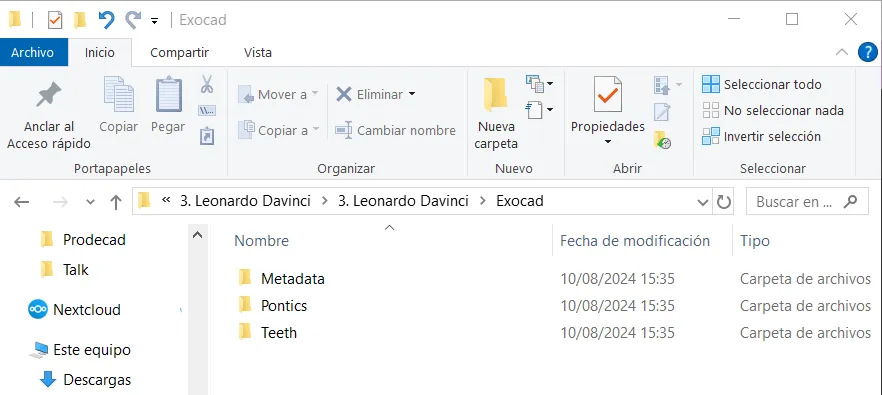
Make sure that the files you acquire contain the following folders:
- Metadata
- Teeth
- Pontics
2. Access the Exocad installation folder
To install your new digital tooth shapes:
Open Windows File Explorer.
Open your (C:) or (D:) drive and look for your exocad folder.
Go to the Exocad installation folder; if yours doesn't match, the path is in the official documentation of exocad.com. Generally:
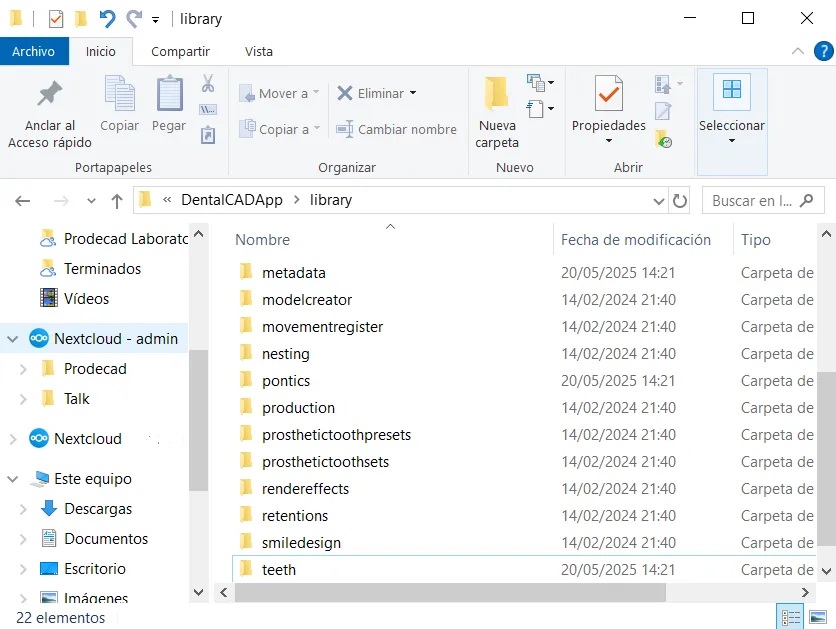
C:\Program Files\exocad-DentalCAD\DentalCADApp\library\
3. Copy your new libraries into the corresponding folders
Copy the Metadata, teeth and pontics folders from your new dental library.
Paste it inside the DentalCADApp folder
/library/of Exocad.Verify that the folders contain the lowerjaw and upperjaw and are inside along with the .eoff files.
4. Activate the library from Exocad
Open Exocad.
Start a new case.
In the design phase, click on “change shape”.
Search for the name of your dental anatomy library.
Select it and apply it to your design.
Tip: if it doesn't appear, make sure to restart Exocad or carefully review all the previous steps.
Conclusion: installing a tooth library in Exocad changes your digital aesthetic
Installing a digital tooth library in Exocad is an essential step for any laboratory or designer who wants to speed up their work without losing quality. The better the dental library for Exocad, the easier it will be to achieve natural and efficient results.
If you want a collection of six digital dental anatomies with shapes based on our experience designing cases over the last 8 years, you can see them in our tooth libraries for Exocad, or buy them directly from the dental library store.